
Classes
The Classes section allows you to create, configure, and manage all classes and sections in your school.
Accessing Classes
- Click "Classes" in the sidebar navigation
- View all classes
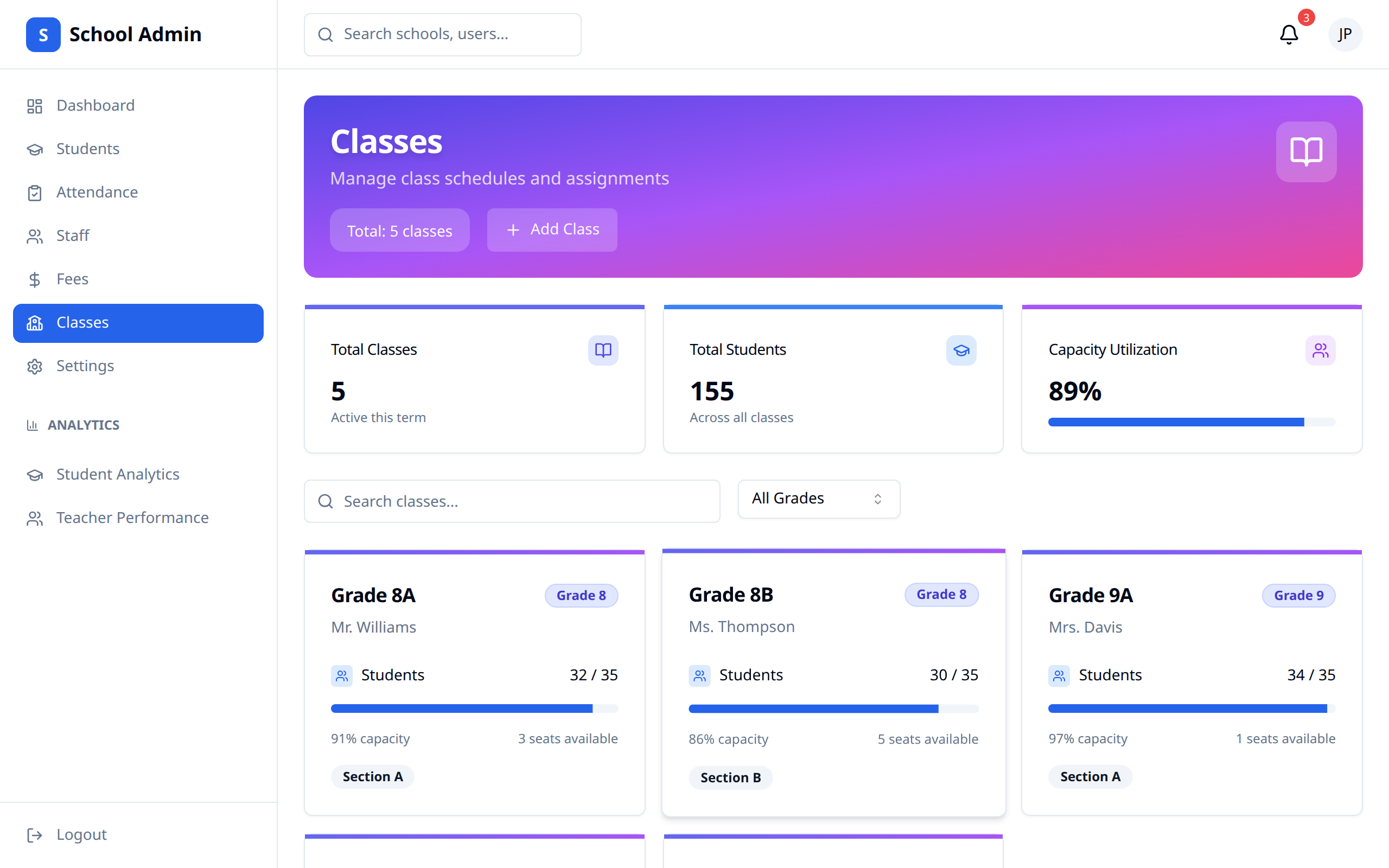
Classes Overview
Class List
View all classes:
- Class name
- Grade level
- Section (if applicable)
- Number of students
- Assigned teachers
- Status
Organization
Classes are typically organized by:
- Grade level (Grade 1, Grade 2, etc.)
- Section (A, B, C)
- Academic year
Creating Classes
Adding a New Class
- Click "Add Class"
- Fill in class details
- Assign teachers
- Configure settings
- Save
Class Details
| Field | Description |
|---|---|
| Class Name | e.g., "Grade 10 A" |
| Grade Level | Academic level |
| Section | Section identifier |
| Academic Year | School year |
| Capacity | Maximum students |
| Room | Assigned classroom |
Assigning Teachers
For each class:
- Assign class teacher (homeroom)
- Assign subject teachers
- Set teacher schedule
Managing Classes
Editing a Class
- Find the class
- Click "Edit"
- Update information
- Save
Class Settings
Configure:
- Grading scale
- Attendance rules
- Timetable
- Subjects offered
Class Roster
Viewing Students
For each class:
- List of enrolled students
- Student count
- Quick access to student profiles
Managing Enrollment
Add students to class:
- Go to class details
- Click "Manage Students"
- Add or remove students
- Save
Moving Students
To transfer a student:
- Remove from current class
- Add to new class Or:
- Edit student profile
- Change class assignment
Subjects and Curriculum
Adding Subjects
Configure subjects for each class:
- Go to class settings
- Click "Subjects"
- Add subjects
- Assign teachers per subject
Subject Configuration
| Field | Description |
|---|---|
| Subject Name | e.g., Mathematics |
| Teacher | Assigned teacher |
| Periods/Week | Class frequency |
| Credits/Weight | Grading weight |
Timetable
Creating Timetable
Set up the class schedule:
- Go to class details
- Click "Timetable"
- Add time slots
- Assign subjects
- Save
Timetable View
View weekly schedule:
- Day-by-day breakdown
- Subject and teacher per period
- Room assignments
Academic Year Management
New Academic Year
To set up a new year:
- Archive or close current year
- Create new classes
- Promote students
- Assign teachers
Class Progression
Manage student progression:
- Promote students to next grade
- Retain students if needed
- Graduate final-year students
Best Practices
- Plan ahead - Set up classes before term starts
- Balance sizes - Distribute students evenly
- Complete assignments - Ensure all teachers assigned
- Verify timetables - Check for conflicts
- Review capacity - Monitor class sizes
- Document changes - Track modifications