
Fees
The Fees section allows you to create fee structures, track payments, manage invoices, and generate financial reports.
Accessing Fees
- Click "Fees" in the sidebar navigation
- View fee management dashboard
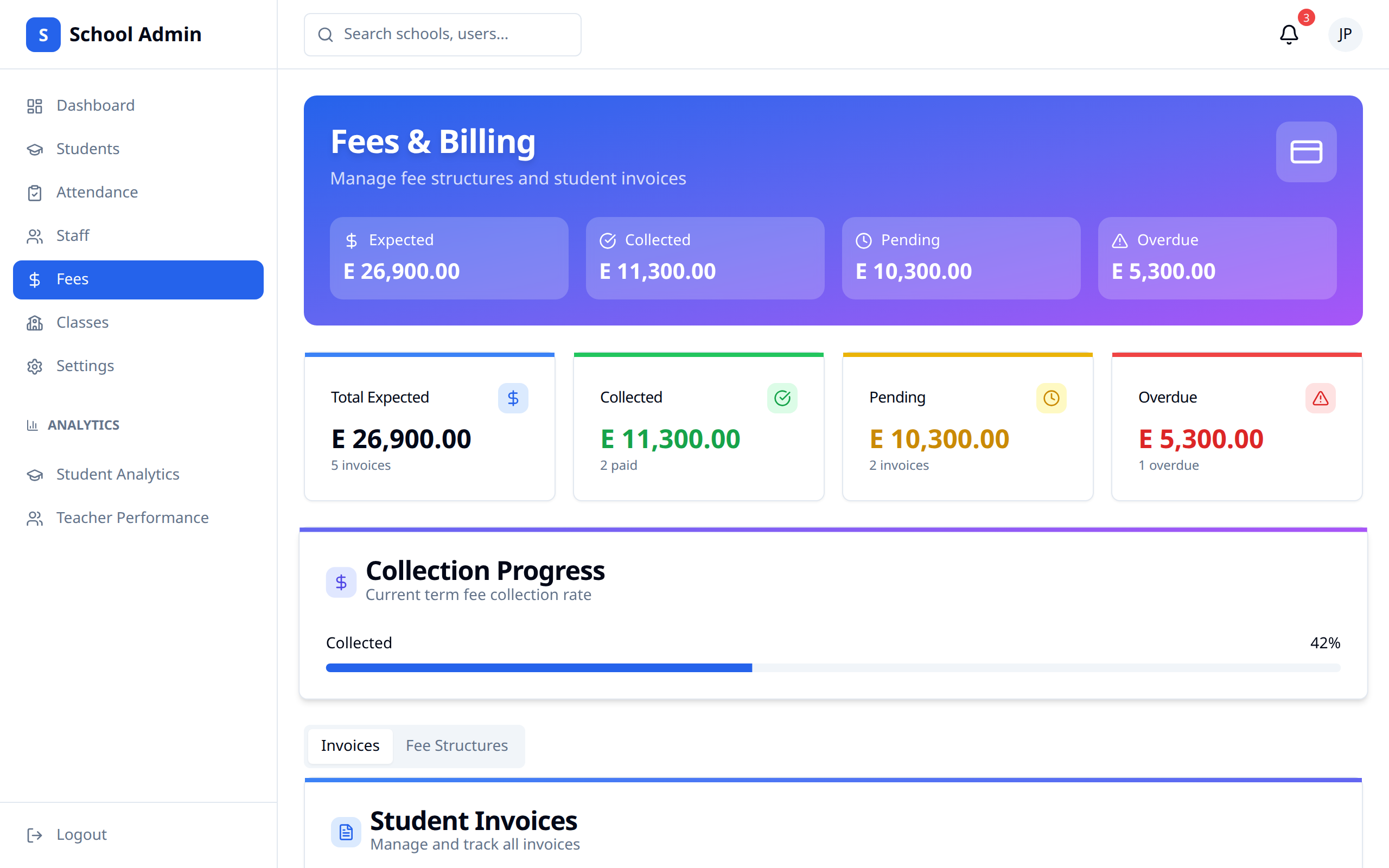
Fee Overview
Dashboard Summary
View financial statistics:
- Total fees expected
- Amount collected
- Outstanding balance
- Collection rate
Key Metrics
| Metric | Description |
|---|---|
| Total Expected | Sum of all fees |
| Collected | Amount received |
| Outstanding | Pending collection |
| Collection Rate | Percentage collected |
Fee Structures
Creating Fee Structures
Define what fees to charge:
- Click "Fee Structures"
- Add new structure
- Define fee items
- Assign to classes/students
- Save
Fee Types
| Type | Description | Example |
|---|---|---|
| Tuition | Main academic fee | Term fee |
| Registration | One-time enrollment | New student fee |
| Activity | Extracurricular | Sports fee |
| Material | Supplies and resources | Lab fee |
| Transport | School transportation | Bus fee |
| Exam | Assessment fees | Exam registration |
Fee Item Details
For each fee item:
- Fee name
- Amount
- Category
- Frequency (one-time, termly, monthly)
- Due date
Assigning Fees
To Classes
Assign fees to entire classes:
- Select fee structure
- Choose classes
- Apply
- All students in class receive fees
To Individual Students
For special cases:
- Go to student profile
- Manage fees
- Add or remove fee items
- Save
Discounts and Waivers
Apply discounts:
- Scholarship recipients
- Sibling discounts
- Special circumstances
Tracking Payments
Payment List
View all payments:
- Student name
- Amount paid
- Payment date
- Method
- Receipt number
Payment Status
| Status | Description | Color |
|---|---|---|
| Paid | Fully paid | Green |
| Partial | Partially paid | Yellow |
| Pending | Not yet paid | Orange |
| Overdue | Past due | Red |
Recording Payments
When payment is received (e.g., cash):
- Find the student
- Click "Record Payment"
- Enter amount
- Select payment method
- Generate receipt
Invoices
Generating Invoices
Create invoices for students:
- Select student(s)
- Click "Generate Invoice"
- Review fee items
- Generate
- Send to parent (email/download)
Invoice Contents
- School details
- Student information
- Fee breakdown
- Total amount
- Due date
- Payment instructions
Fee Reports
Available Reports
| Report | Description |
|---|---|
| Collection Summary | Overall collection status |
| Outstanding Fees | Students with balances |
| Payment History | All transactions |
| Class Report | Fees by class |
| Student Report | Individual fee status |
Generating Reports
- Click "Reports"
- Select report type
- Choose date range
- Filter as needed
- Generate and download
Fee Reminders
Automatic Reminders
Configure reminders:
- Before due date
- On due date
- After due date (overdue)
Sending Reminders
To send manual reminders:
- Select students with outstanding fees
- Click "Send Reminder"
- Customize message (optional)
- Send
Settings
Fee Configuration
Configure fee settings:
- Default due dates
- Late payment penalties
- Grace periods
- Payment methods accepted
Payment Integration
If online payments enabled:
- Mobile Money integration
- Card payment setup
- Bank transfer details
Best Practices
- Set clear structures - Define fees before term
- Communicate early - Inform parents of fees
- Track diligently - Record all payments promptly
- Follow up - Send reminders for outstanding fees
- Report regularly - Monitor collection rates
- Document waivers - Record all discounts with reasons