
Lessons
The Lessons section helps you plan, organize, and manage your teaching materials and lesson plans for each class.
Accessing Lessons
- Click "Lessons" in the sidebar navigation
- View and manage your lesson plans
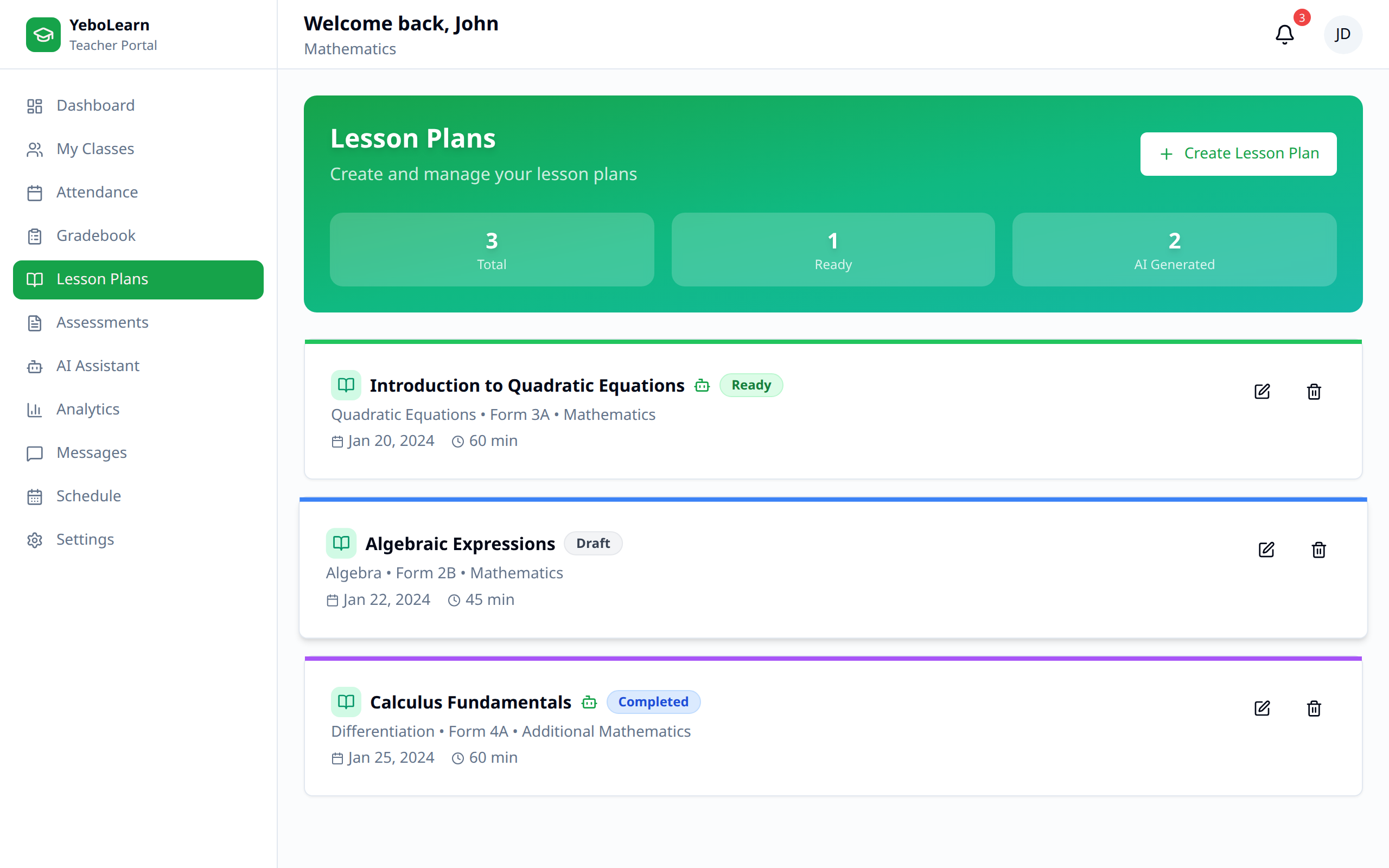
Lesson Planning Overview
Why Use Lesson Plans
- Stay organized - Keep all materials in one place
- Track progress - Monitor curriculum coverage
- Share easily - Provide materials to students
- Improve teaching - Refine lessons over time
Creating a Lesson Plan
Starting a New Lesson
- Click "Create Lesson"
- Select the class
- Fill in lesson details
- Add resources
- Save
Lesson Details
| Field | Description |
|---|---|
| Title | Lesson name/topic |
| Class | Which class it's for |
| Subject | Subject area |
| Date | When it will be taught |
| Duration | Length of lesson |
| Objectives | Learning goals |
| Description | Lesson overview |
Learning Objectives
Define what students will learn:
- Use clear, measurable objectives
- Align with curriculum standards
- Example: "Students will be able to solve quadratic equations"
Lesson Content
Adding Sections
Structure your lesson with sections:
| Section | Purpose |
|---|---|
| Introduction | Hook and overview |
| Direct Instruction | Main teaching content |
| Guided Practice | Teacher-led activities |
| Independent Practice | Student work |
| Assessment | Check understanding |
| Closure | Summary and preview |
Adding Content
For each section, add:
- Text instructions
- Teaching notes
- Activity descriptions
- Time allocations
Attaching Resources
Resource Types
Attach materials to lessons:
| Type | Examples |
|---|---|
| Documents | Worksheets, handouts |
| Presentations | Slides, visual aids |
| Videos | Educational videos |
| Links | External resources |
| Images | Diagrams, charts |
Uploading Files
- Click "Add Resource"
- Select file type
- Upload or link
- Add description
- Save
Organizing Resources
- Label resources clearly
- Group by section
- Mark student-visible resources
Managing Lessons
Lesson List
View all lessons:
- Sorted by date
- Filtered by class
- Status indicators
- Search functionality
Lesson Status
| Status | Description |
|---|---|
| Draft | Work in progress |
| Ready | Prepared to teach |
| In Progress | Currently teaching |
| Completed | Lesson delivered |
Editing Lessons
- Find the lesson
- Click "Edit"
- Make changes
- Save
Duplicating Lessons
Reuse lessons for other classes:
- Click "Duplicate"
- Select new class
- Adjust dates
- Save as new lesson
Lesson Calendar
Calendar View
See lessons on a calendar:
- Monthly, weekly, or daily view
- Color-coded by class
- Drag and drop to reschedule
Scheduling
- Plan lessons ahead
- Avoid scheduling conflicts
- Align with school calendar
Sharing with Students
Publishing Materials
Make resources available to students:
- Mark resources as "Visible to Students"
- Students can access through their app
- Control when resources become visible
Student Access
Students can view:
- Lesson topics and objectives
- Shared resources
- Assignment links
- Upcoming content
Lesson Analytics
Tracking Completion
Monitor curriculum progress:
- Lessons completed vs. planned
- Coverage percentage
- Pace analysis
Notes and Reflections
Add post-lesson notes:
- What worked well
- Areas to improve
- Student questions
- Follow-up needed
Templates
Creating Templates
Save time with reusable templates:
- Create a complete lesson
- Save as template
- Use for future lessons
Using Templates
- Select "New from Template"
- Choose a template
- Customize for the specific lesson
- Save
Best Practices
- Plan ahead - Prepare lessons in advance
- Be flexible - Adjust as needed
- Include variety - Mix teaching methods
- Time accurately - Realistic activity durations
- Reflect - Note what works
- Share - Collaborate with colleagues
TIP
Use the duplicate feature to quickly adapt successful lessons for different classes or terms.