
Students
The Students section allows you to manage all student records, including enrollment, profile information, class assignments, and parent linking.
Accessing Students
- Click "Students" in the sidebar navigation
- View the student list
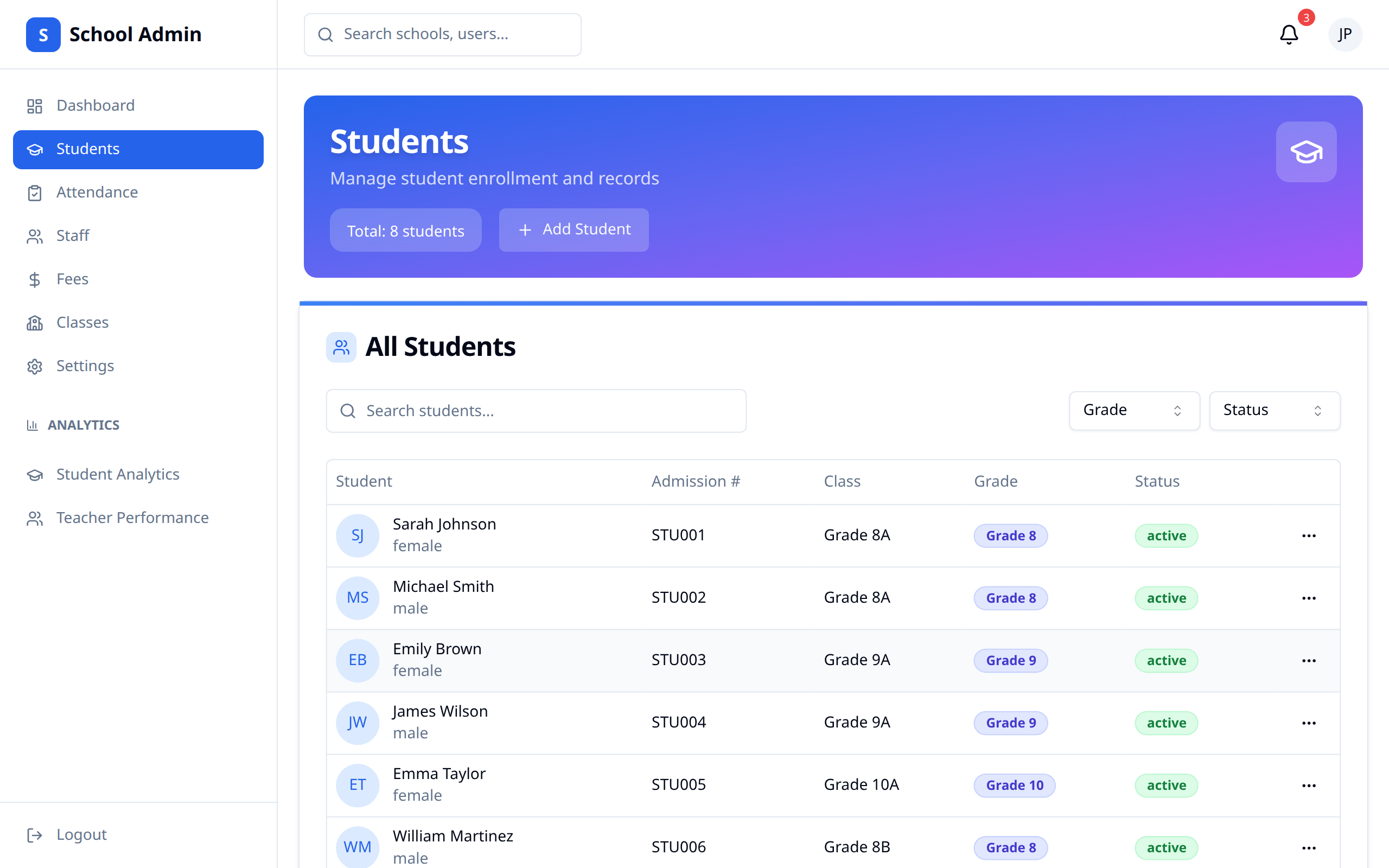
Student List
Overview
View all enrolled students:
- Student name and photo
- Student ID
- Class/Grade
- Enrollment status
- Quick actions
Sorting and Filtering
Organize the list by:
- Name (A-Z, Z-A)
- Class/Grade
- Enrollment date
- Status (active, inactive)
Searching
Find specific students:
- Search by name
- Search by student ID
- Search by class
Adding Students
New Student Enrollment
- Click "Add Student"
- Complete the enrollment form
- Submit for processing
Required Information
| Field | Description |
|---|---|
| First Name | Student's first name |
| Last Name | Student's last name |
| Date of Birth | Birth date |
| Gender | Student's gender |
| Class | Assigned class |
| Student email (if applicable) | |
| Phone | Contact number (if applicable) |
Additional Information
You may also add:
- Address
- Medical information
- Previous school
- Special needs
- Emergency contacts
Parent/Guardian Information
Link parents during enrollment:
- Parent name
- Relationship
- Contact information
- Email for account creation
Editing Students
Updating Student Information
- Find the student
- Click "Edit" or the student name
- Update information
- Save changes
Editable Fields
You can modify:
- Personal information
- Contact details
- Class assignment
- Parent links
- Status
Class Transfers
To move a student to a different class:
- Edit the student
- Change the class assignment
- Save
- Student appears in new class
Student Profile
Profile View
Each student profile shows:
- Personal information
- Academic history
- Attendance summary
- Fee status
- Linked parents
Profile Sections
| Section | Information |
|---|---|
| Overview | Basic info and status |
| Academic | Grades and performance |
| Attendance | Attendance records |
| Fees | Payment status |
| Parents | Linked guardians |
Managing Parents
Linking Parents
To add a parent to a student:
- Go to student profile
- Click "Add Parent"
- Enter parent information
- System creates parent account
- Parent receives login credentials
Parent Account Creation
When you link a parent:
- Account created automatically
- Login credentials sent via email
- Parent can access student info
Multiple Parents
Students can have:
- Both parents linked
- Guardians added
- Multiple contacts
Student Status
Status Types
| Status | Description |
|---|---|
| Active | Currently enrolled |
| Inactive | Temporarily not attending |
| Graduated | Completed schooling |
| Transferred | Moved to another school |
| Withdrawn | Left the school |
Changing Status
- Edit the student
- Update status field
- Add reason (optional)
- Save
:::note Status changes affect student's access and reporting. :::
Bulk Operations
Import Students
For multiple students:
- Click "Import"
- Download template
- Fill in student data
- Upload completed file
- Review and confirm
Export Students
Download student data:
- Click "Export"
- Select fields to include
- Choose format (Excel, CSV)
- Download
Best Practices
- Complete profiles - Enter all available information
- Verify data - Double-check before saving
- Link parents - Ensure parent access
- Keep updated - Maintain current information
- Regular review - Check for inactive students
- Secure data - Handle information appropriately