
Staff
The Staff section allows you to manage teachers and other staff members, including their accounts, roles, and class assignments.
Accessing Staff
- Click "Staff" in the sidebar navigation
- View the staff list
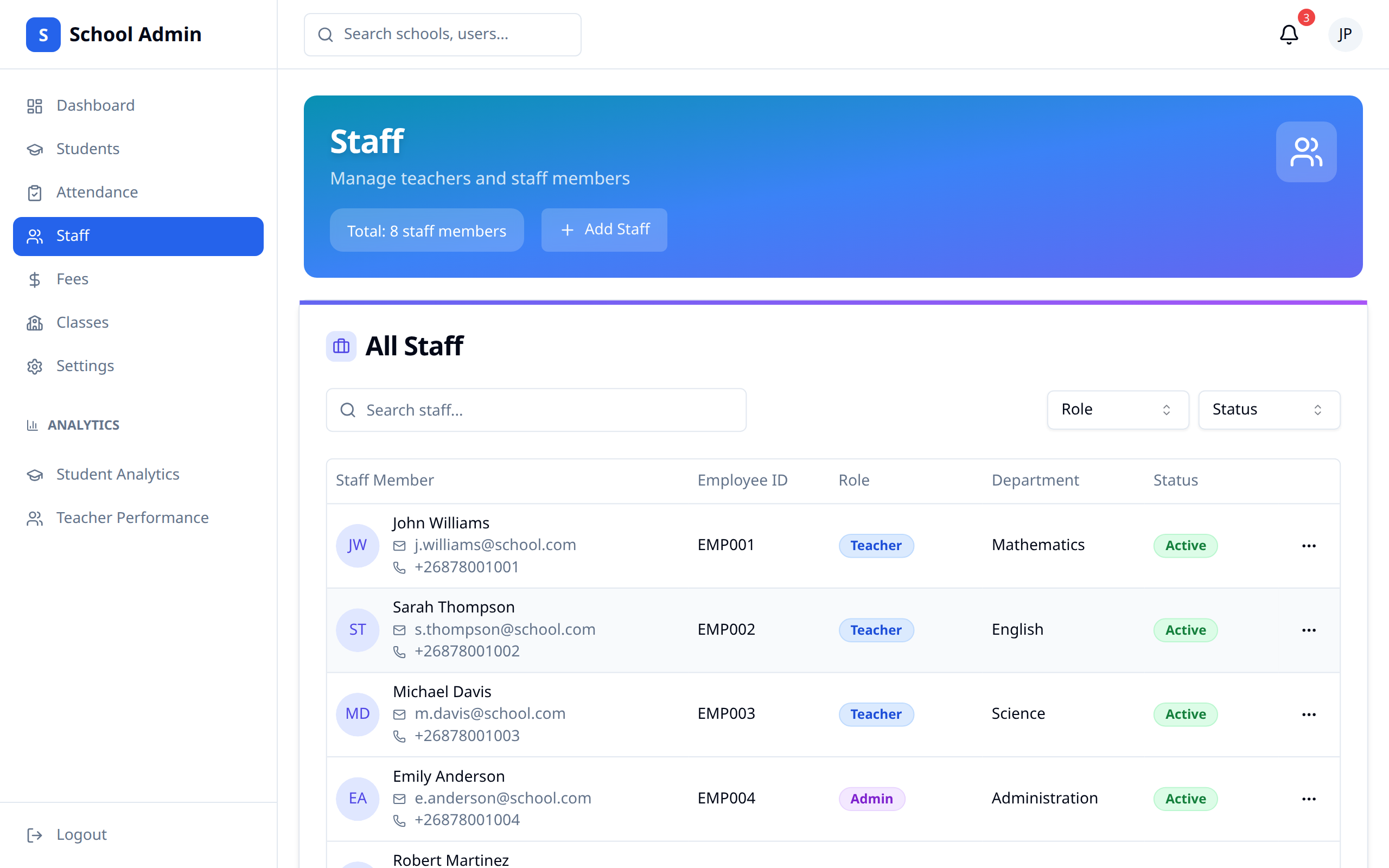
Staff List
Overview
View all staff members:
- Name and photo
- Staff ID
- Role/Position
- Department
- Status
- Quick actions
Filtering and Sorting
Organize by:
- Name
- Role (Teacher, Admin, Support)
- Department
- Status
Searching
Find staff by:
- Name
- Staff ID
Adding Staff
New Staff Member
- Click "Add Staff"
- Complete the staff form
- Assign role and permissions
- Submit
Required Information
| Field | Description |
|---|---|
| First Name | Staff member's first name |
| Last Name | Staff member's last name |
| Email address (for login) | |
| Phone | Contact number |
| Role | Position (Teacher, Admin, etc.) |
| Department | Subject area or department |
Role Assignment
Available roles:
| Role | Description | Access Level |
|---|---|---|
| Teacher | Classroom teacher | Classes, grades, attendance |
| Head Teacher | Department head | Extended teacher access |
| Admin Staff | Administrative | Limited admin access |
| Support Staff | Non-teaching | Basic access |
Account Creation
When you add staff:
- Account created automatically
- Login credentials sent via email
- Access based on role
Editing Staff
Updating Staff Information
- Find the staff member
- Click "Edit" or their name
- Update information
- Save changes
Editable Fields
You can modify:
- Personal information
- Contact details
- Role and permissions
- Class assignments
- Status
Staff Profile
Profile View
Each staff profile shows:
- Personal information
- Role and department
- Assigned classes
- Contact details
- Account status
Class Assignments
Assigning Classes to Teachers
- Go to teacher profile
- Click "Manage Classes"
- Add or remove class assignments
- Save
Viewing Assignments
See which classes a teacher handles:
- Subject taught
- Class/Grade
- Schedule
Roles and Permissions
Understanding Permissions
Each role has specific access:
| Permission | Teacher | Head Teacher | Admin |
|---|---|---|---|
| View students | Own classes | Department | All |
| Enter grades | Own classes | Department | All |
| Attendance | Own classes | Department | All |
| Reports | Own classes | Department | All |
| Settings | No | Limited | Yes |
Modifying Permissions
For custom permissions:
- Edit staff profile
- Adjust permission settings
- Save
:::note Be careful when granting elevated permissions. :::
Staff Status
Status Types
| Status | Description |
|---|---|
| Active | Currently employed |
| On Leave | Temporarily away |
| Inactive | No longer employed |
Deactivating Staff
When staff leaves:
- Edit their profile
- Change status to Inactive
- Access is revoked
- Data is preserved
WARNING
Deactivating staff removes their system access immediately.
Bulk Operations
Import Staff
For multiple staff:
- Click "Import"
- Download template
- Fill in data
- Upload file
- Review and confirm
Export Staff
Download staff data:
- Click "Export"
- Select fields
- Choose format
- Download
Best Practices
- Verify information - Ensure accuracy
- Assign appropriate roles - Match access to responsibilities
- Update promptly - Reflect changes immediately
- Review regularly - Check for inactive accounts
- Secure accounts - Enforce strong passwords
- Document changes - Note reasons for modifications