
AI Assistant
The AI Assistant helps you with various teaching tasks, from creating content to analyzing student performance and answering questions.
Accessing AI Assistant
- Click "AI Assistant" in the sidebar navigation
- The AI chat interface opens
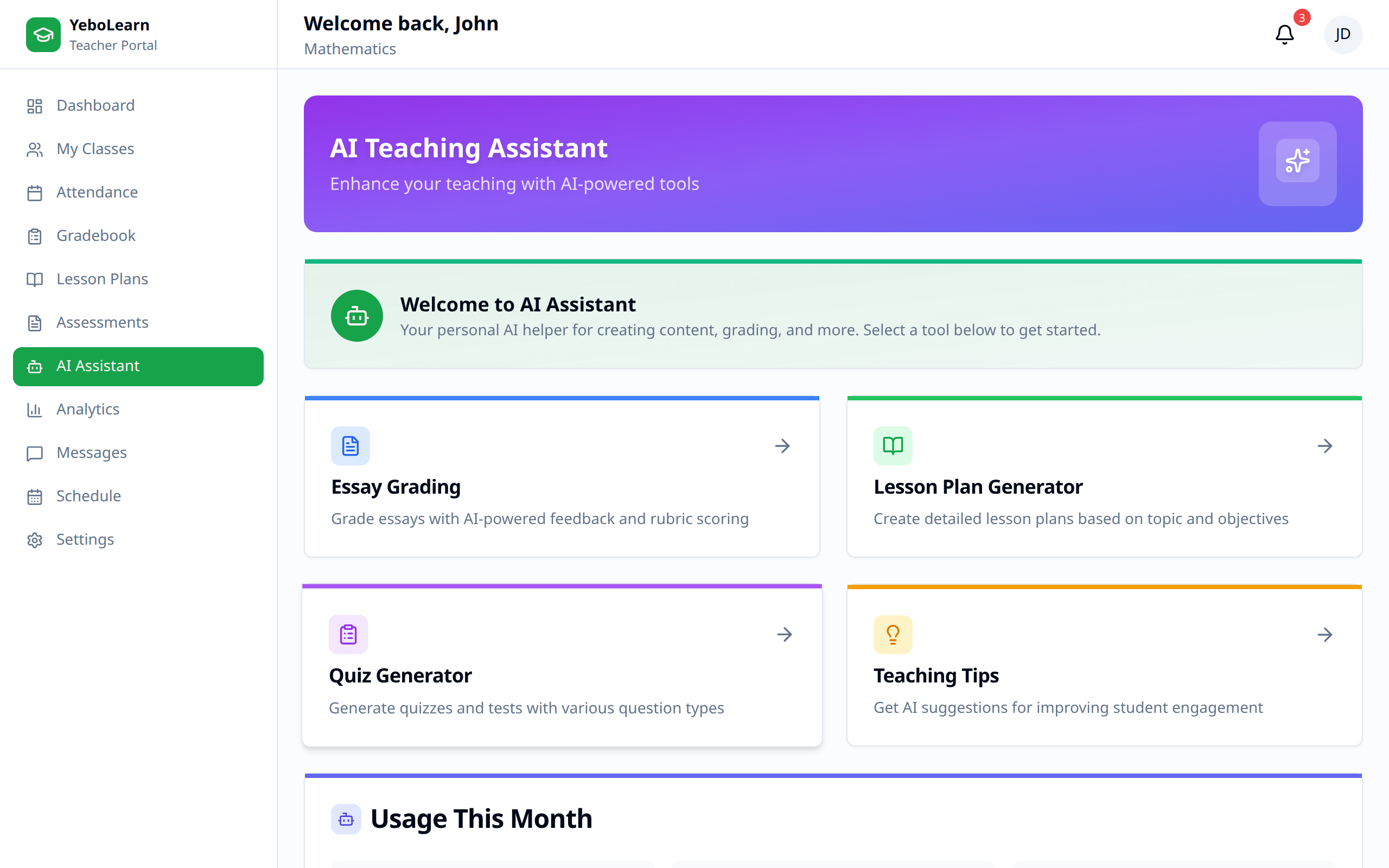
Overview
The AI Assistant can help you with:
- Content creation - Generate quizzes, worksheets, explanations
- Lesson planning - Ideas for activities and structure
- Analysis - Interpret student data
- Writing assistance - Draft communications, feedback
- Research - Find teaching resources and methods
Starting a Conversation
How to Chat
- Type your request in the chat box
- Press Enter or click Send
- Review the AI's response
- Continue the conversation as needed
Example Requests
Content Creation:
- "Create a 10-question quiz on photosynthesis for Grade 9"
- "Generate a worksheet on fractions with varying difficulty"
- "Write an explanation of the water cycle for elementary students"
Lesson Planning:
- "Suggest activities for teaching Shakespeare to high schoolers"
- "Give me ideas for a hands-on science lesson about electricity"
- "How can I make math more engaging for struggling students?"
Communication:
- "Help me write a parent email about upcoming exams"
- "Draft feedback for a student who is improving but needs more practice"
- "Write an announcement about the science fair"
Features
Content Generation
The AI can create:
| Content Type | Examples |
|---|---|
| Quizzes | Multiple choice, true/false |
| Worksheets | Practice problems, activities |
| Rubrics | Grading criteria |
| Explanations | Topic summaries |
| Discussion Questions | Class discussion starters |
Lesson Assistance
Get help with:
- Activity ideas
- Lesson structure suggestions
- Differentiation strategies
- Assessment approaches
- Time management
Data Analysis
Ask the AI to help analyze:
- Class performance trends
- Assessment results
- Student progress
- Attendance patterns
Writing Support
Get assistance writing:
- Progress reports
- Parent communications
- Student feedback
- Recommendation letters
- Assignment instructions
Using Generated Content
Reviewing Output
Always review AI-generated content:
- Check accuracy
- Verify appropriateness
- Adjust for your class
- Ensure curriculum alignment
Editing and Customizing
The AI provides a starting point:
- Review the generated content
- Edit as needed
- Add your personal touch
- Adapt for your students
Copying Content
To use generated content:
- Click "Copy" button
- Paste into assessments, documents, or messages
- Edit as needed
Effective Prompts
Be Specific
Good: "Create 5 multiple choice questions about the American Revolution for 8th grade, focusing on causes of the war"
Less effective: "Make a history quiz"
Provide Context
Include:
- Grade level
- Subject/topic
- Difficulty level
- Format preferences
- Number of items
Iterate
Build on responses:
- "Can you make those questions harder?"
- "Add more answer choices"
- "Explain that more simply"
- "Give me 5 more questions"
Chat History
Viewing Past Conversations
Your conversations are saved:
- Click "History" or the history icon
- Browse previous sessions
- Continue any conversation
Starting Fresh
For a new topic:
- Click "New Chat"
- Previous chat is saved automatically
Best Practices
- Verify accuracy - Always review AI output
- Customize content - Adapt for your specific class
- Use as a starting point - Enhance with your expertise
- Be specific - Better prompts get better results
- Iterate - Refine through conversation
- Save useful outputs - Keep good content for reuse
Limitations
The AI Assistant:
- May not have the most current information
- Provides suggestions, not definitive answers
- Should supplement, not replace, your expertise
- May occasionally produce inaccurate content
TIP
Think of the AI as a helpful teaching assistant - it can save time and provide ideas, but your professional judgment should guide final decisions.
Privacy
- Conversations are private to your account
- Don't include sensitive student information
- Follow school policies on AI usage
Tips
TIP
Use the AI Assistant to quickly draft content, then spend your time refining it rather than starting from scratch.
TIP
Save successful prompts that work well for future use.