
Attendance
The Attendance section allows you to efficiently record student attendance, view historical records, and generate attendance reports.
Accessing Attendance
- Click "Attendance" in the sidebar navigation
- Select a class to take attendance
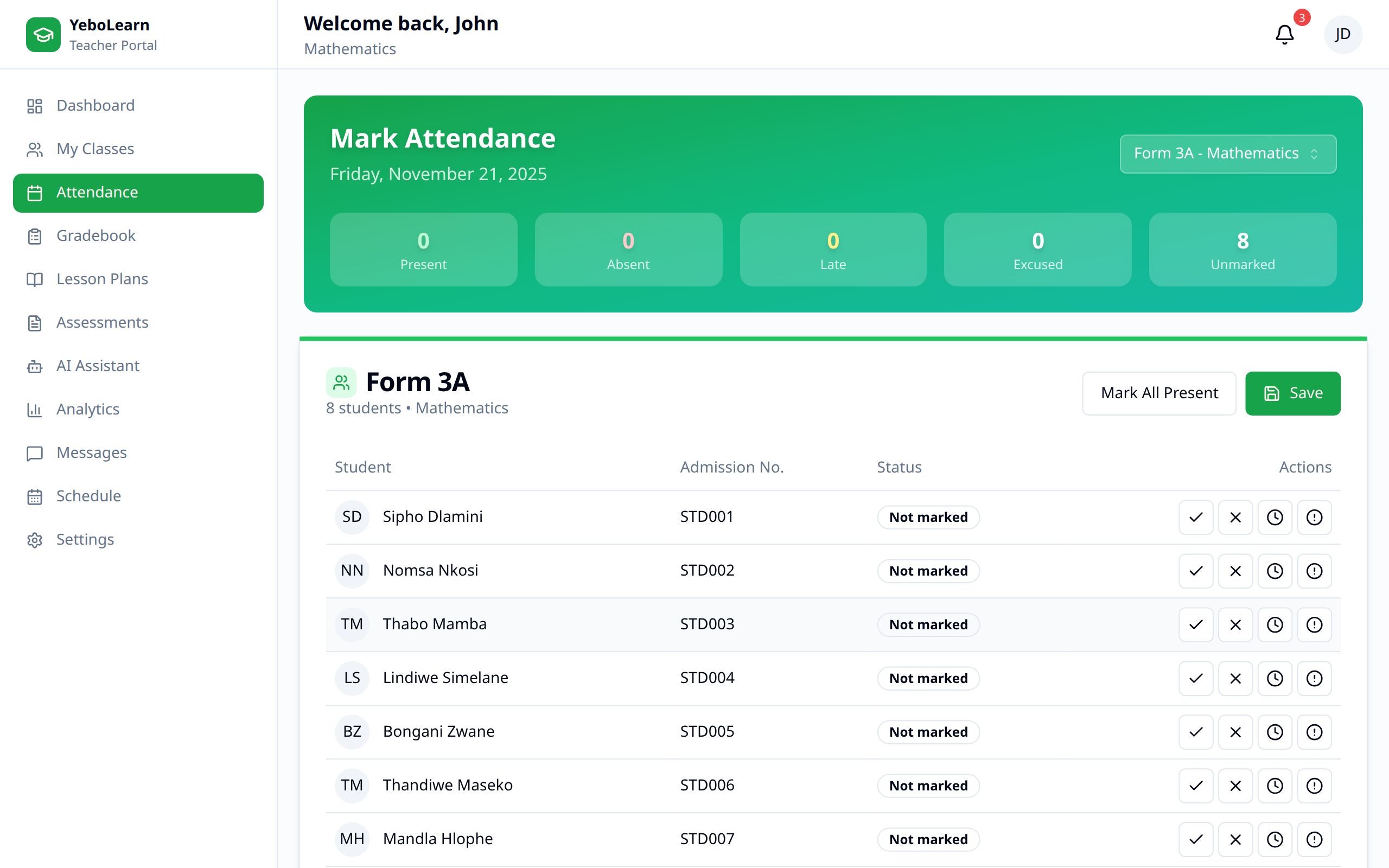
Taking Attendance
Quick Attendance
- Select the class
- The student list appears
- Mark each student as:
- Present - Green checkmark
- Absent - Red X
- Late - Yellow clock
- Excused - Blue note
- Click "Save Attendance"
Attendance Status Options
| Status | Use When |
|---|---|
| Present | Student is in class |
| Absent | Student is not in class |
| Late | Student arrived after start time |
| Excused | Approved absence (medical, etc.) |
Bulk Actions
For faster marking:
- Mark All Present - Start with everyone present
- Mark All Absent - Start with everyone absent
- Then adjust individual students
Today's Attendance
Pending Classes
View classes that need attendance today:
- Classes highlighted that haven't been marked
- Time remaining to submit
- Quick access buttons
Completed Classes
See classes where attendance is done:
- Green checkmark indicator
- Summary of present/absent
- Option to edit if needed
Viewing Attendance Records
By Class
- Select a class
- Choose date range
- View attendance history
By Student
- Go to student profile
- View individual attendance record
- See patterns and trends
By Date
- Select a specific date
- View all classes for that day
- See attendance across classes
Attendance Analytics
Class Statistics
View aggregated data:
- Overall attendance rate
- Days with best/worst attendance
- Average attendance by day of week
- Trend over time
Student Patterns
Identify students with:
- Perfect attendance
- Frequent absences
- Consistent lateness
- Improving/declining attendance
Editing Attendance
Making Corrections
- Go to the attendance record
- Click "Edit"
- Make changes
- Add a reason/note (optional)
- Save changes
:::note Edits may be logged for administrative review. Always ensure accuracy when editing. :::
Adding Notes
Add notes for specific attendance records:
- Reason for absence
- Parent communication
- Follow-up needed
Attendance Alerts
Automatic Notifications
The system can notify:
- Students when marked absent
- Parents of absence
- Admin for concerning patterns
Threshold Alerts
Set up alerts when:
- Student attendance drops below threshold
- Multiple consecutive absences
- Class average falls below target
Generating Reports
Class Attendance Report
- Go to Attendance > Reports
- Select class
- Choose date range
- Click "Generate Report"
- Download PDF or Excel
Report Contents
Reports include:
- Student-by-student attendance
- Daily summaries
- Statistics and percentages
- Trend analysis
Best Practices
- Take attendance promptly - At the start of each class
- Be accurate - Double-check before saving
- Add notes - Document unusual circumstances
- Review regularly - Monitor class and individual trends
- Follow up - Address attendance issues early
- Communicate - Inform parents of concerns
TIP
Consistent attendance taking helps identify struggling students early and maintains accurate school records.
Troubleshooting
Attendance Not Saving
- Check internet connection
- Ensure all students are marked
- Refresh and try again
Wrong Date
- Verify the date selected
- Use calendar picker for past dates
Missing Students
- Contact admin to add students to class roster
- Check if student was recently enrolled