
Schedule
The Schedule section displays your class timetable, helping you stay organized and never miss a class.
Accessing Your Schedule
- Click "Schedule" in the sidebar navigation
- Your timetable will be displayed
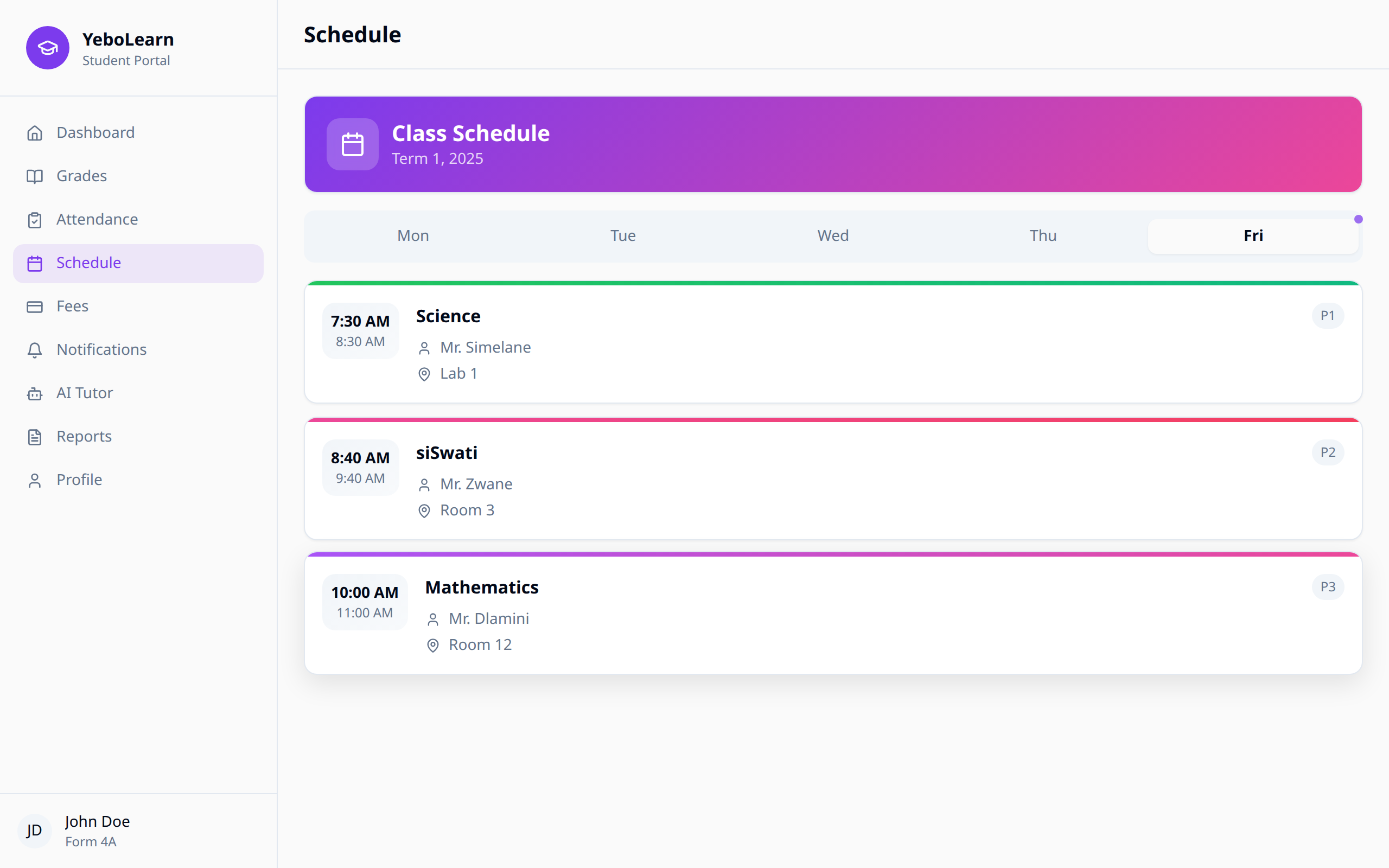
Schedule Views
Daily View
See today's classes in detail:
- Class times (start and end)
- Subject name
- Teacher name
- Room/Location
- Current class highlighted
Weekly View
View your entire week at a glance:
- Monday through Friday (or Saturday if applicable)
- Color-coded subjects
- Easy comparison across days
Monthly View
Plan ahead with the monthly calendar:
- See school events
- Exam schedules
- Holidays and breaks
Understanding Your Timetable
Class Information
Each class entry shows:
| Field | Description |
|---|---|
| Time | Start and end time of the class |
| Subject | The course being taught |
| Teacher | Instructor's name |
| Room | Classroom or location |
| Type | Regular class, lab, tutorial, etc. |
Color Coding
Subjects are color-coded for easy identification:
- Each subject has a unique color
- Colors remain consistent across views
- Helps quickly identify classes
Special Schedule Items
Events
Special events appear on your schedule:
- School assemblies
- Sports days
- Parent meetings
- Cultural events
Exams
During exam periods:
- Exam schedules replace regular timetables
- Exam venue and duration shown
- Study periods may be indicated
Holidays
School holidays and breaks:
- Clearly marked on the calendar
- No classes scheduled
- Public holidays shown
Schedule Changes
Notifications
You'll be notified of:
- Class cancellations
- Room changes
- Time changes
- Substitute teachers
Viewing Changes
Changed classes are highlighted:
- Original schedule shown with strikethrough
- New schedule shown in different color
- Reason for change (if provided)
Using the Schedule Effectively
Tips
- Check daily - Review your schedule each morning
- Enable notifications - Get alerts for changes
- Plan ahead - Look at upcoming weeks
- Note room changes - Pay attention to location
- Sync with calendar - Export to your personal calendar if available
Planning Study Time
Use gaps in your schedule for:
- Completing assignments
- Reviewing notes
- AI Tutor sessions
- Group study
Exporting Your Schedule
To export your timetable:
- Click the "Export" button
- Choose format (PDF, iCal, or image)
- Select date range
- Download the file
TIP
Export to iCal format to sync with your phone's calendar app.