
Assessments
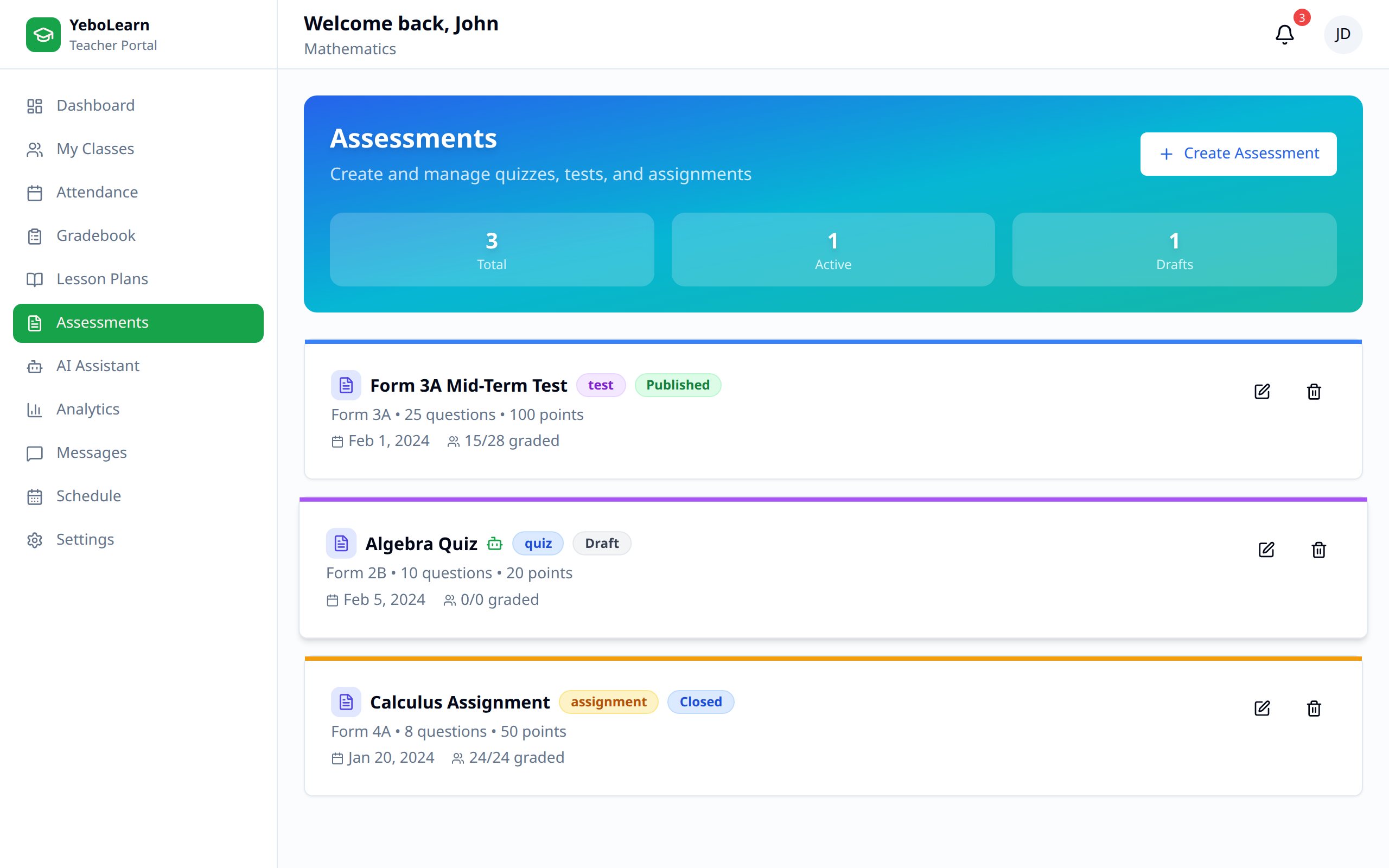
The Assessments section allows you to create, manage, and grade various types of student assessments including tests, quizzes, assignments, and projects.
Accessing Assessments
- Click "Assessments" in the sidebar navigation
- View all your assessments across classes
Assessment Types
| Type | Description | Typical Use |
|---|---|---|
| Quiz | Short assessment | Quick knowledge check |
| Test | Comprehensive assessment | End of topic/unit |
| Exam | Major assessment | Mid-term or final |
| Assignment | Take-home work | Homework, projects |
| Project | Extended work | Research, presentations |
Creating Assessments
Starting a New Assessment
- Click "Create Assessment"
- Select the class
- Choose assessment type
- Fill in details
Assessment Details
| Field | Description |
|---|---|
| Title | Name of the assessment |
| Type | Quiz, Test, Assignment, etc. |
| Class | Which class it's for |
| Due Date | When it's due |
| Total Points | Maximum possible score |
| Description | Instructions or details |
| Weight | How much it counts toward final grade |
Adding Questions (Optional)
For online assessments:
- Add question text
- Select question type:
- Multiple choice
- True/False
- Short answer
- Essay
- Set point value
- Add correct answer (for auto-grading)
Managing Assessments
Assessment List
View all assessments with:
- Title and type
- Class assignment
- Due date
- Status (draft, active, completed)
- Submission count
Assessment Status
| Status | Description |
|---|---|
| Draft | Not yet published |
| Active | Published, accepting submissions |
| Closed | Past due date |
| Graded | All submissions graded |
Editing Assessments
- Find the assessment
- Click "Edit"
- Make changes
- Save
WARNING
Be careful editing active assessments. Changes may affect students who have already started.
Duplicating Assessments
To reuse an assessment:
- Click "Duplicate"
- Modify for new class/date
- Save as new assessment
Publishing Assessments
Making Assessment Live
- Review assessment details
- Click "Publish"
- Students can now view and complete
Scheduling Publication
Set future publish date:
- In assessment settings, enable "Schedule"
- Select publish date and time
- Assessment auto-publishes at set time
Viewing Submissions
Submission List
See all student submissions:
- Student name
- Submission date/time
- Status (submitted, late, missing)
- Score (if graded)
Individual Submissions
Click on a submission to view:
- Student's answers/work
- Time taken
- Submitted files (if applicable)
- Grading interface
Grading Assessments
Manual Grading
- Open the submission
- Review student work
- Enter score for each question/section
- Add feedback (optional)
- Click "Save Grade"
Quick Grading
For multiple submissions:
- Use the "Grade All" view
- Enter scores in a spreadsheet-like interface
- Save all grades at once
Auto-Grading
For supported question types:
- Multiple choice auto-grades
- True/False auto-grades
- Review and adjust as needed
Providing Feedback
Add feedback for students:
- Overall comments
- Question-specific feedback
- Suggestions for improvement
Assessment Analytics
Class Performance
View how the class performed:
- Average score
- Score distribution
- Question-by-question analysis
- Top and lowest scores
Identifying Patterns
Use analytics to:
- Find commonly missed questions
- Identify struggling students
- Adjust future teaching
Best Practices
- Clear instructions - Write unambiguous questions
- Fair timing - Give adequate time to complete
- Align with learning - Test what you've taught
- Provide feedback - Help students learn from mistakes
- Vary types - Use different assessment formats
- Review analytics - Adjust teaching based on results
Tips
TIP
Create assessment templates for common formats you use regularly to save time.
TIP
Use the duplication feature to quickly create similar assessments for multiple classes.