
Classes
The Classes section allows you to view and manage all your assigned classes, including student rosters, class information, and quick access to class-specific features.
Accessing Classes
- Click "Classes" in the sidebar navigation
- Your assigned classes will be displayed
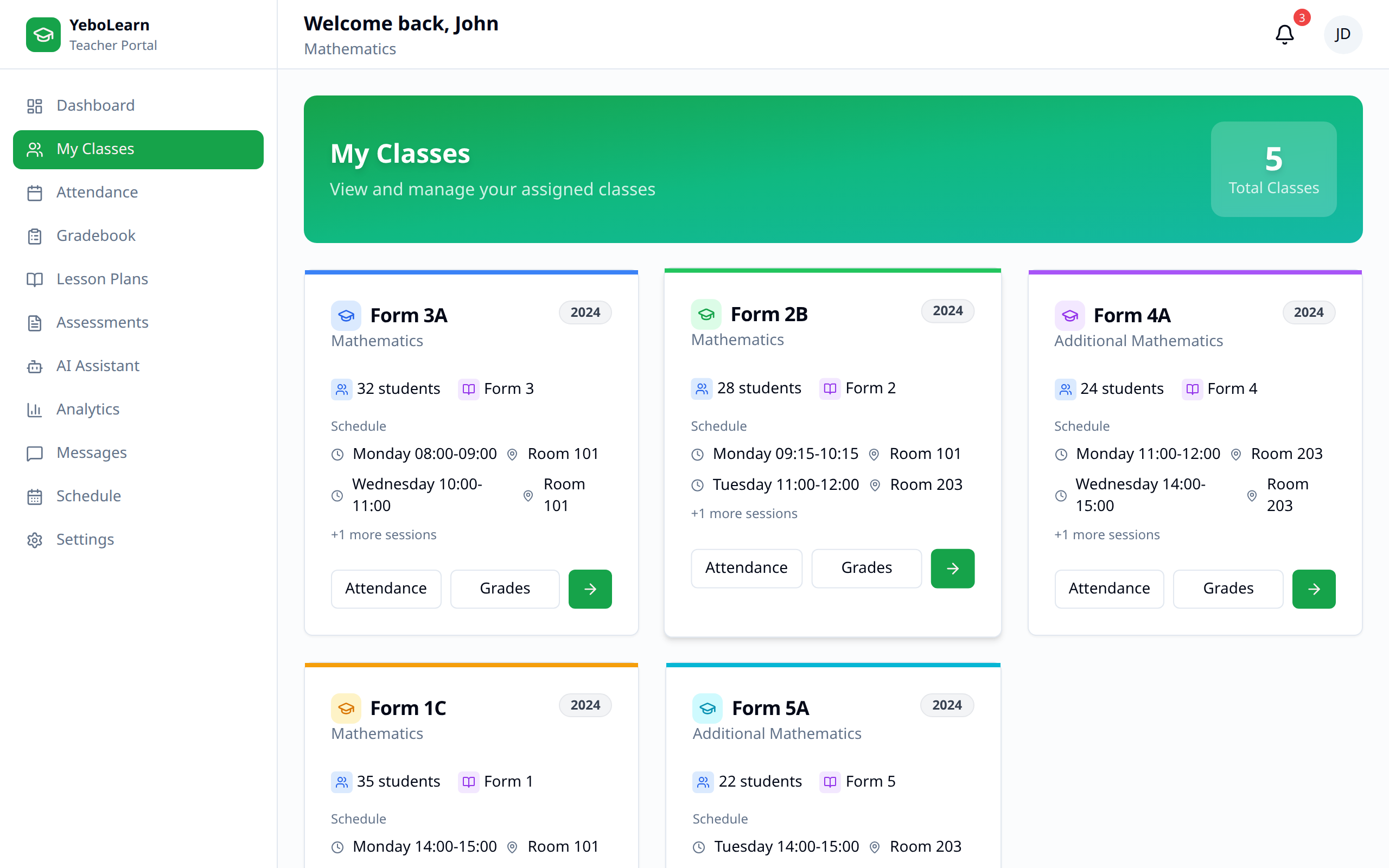
Classes Overview
Class List
View all your assigned classes showing:
- Class name (e.g., "Grade 10 Mathematics")
- Subject taught
- Number of students enrolled
- Class schedule/period
- Academic term
Class Cards
Each class displays as a card with:
| Information | Description |
|---|---|
| Class Name | Name of the class |
| Subject | Subject you teach |
| Students | Number of enrolled students |
| Schedule | When the class meets |
| Room | Classroom location |
Viewing Class Details
Accessing a Class
- Click on any class card
- The class detail page opens
Class Information
The detail page shows:
- Full class information
- Student roster
- Quick links to attendance, grades, assessments
- Class performance summary
Student Roster
Viewing Students
For each class, you can see:
- Student name and photo
- Student ID
- Contact information
- Attendance summary
- Current grade/average
Student Quick Actions
From the roster, you can:
- View student profile
- Check attendance history
- View grades
- Send message to student or parent
Sorting and Filtering
Organize the roster by:
- Name (A-Z or Z-A)
- Student ID
- Grade average
- Attendance rate
Class Features
Quick Access
Each class provides shortcuts to:
| Feature | Action |
|---|---|
| Attendance | Take or view attendance |
| Gradebook | Enter and manage grades |
| Assessments | View class assessments |
| Lessons | Access lesson plans |
| Analytics | View class performance |
Class Settings
Configure class-specific settings:
- Grading scale preferences
- Attendance requirements
- Communication preferences
Class Performance Summary
At-a-Glance Metrics
- Class Average - Overall grade average
- Attendance Rate - Class attendance percentage
- Top Performers - Highest-achieving students
- Needs Attention - Students requiring support
Performance Trends
View how the class is performing over time:
- Grade trends chart
- Attendance trends
- Assessment scores distribution
Managing Multiple Classes
Switching Between Classes
- Use the class dropdown in the top navigation
- Click class cards on the main Classes page
- Use quick navigation from the dashboard
Comparing Classes
View performance across classes:
- Side-by-side comparisons
- Subject-wise analysis
- Identify patterns
Tips for Class Management
- Know your students - Review rosters at term start
- Monitor regularly - Check class performance weekly
- Identify struggles early - Use analytics to spot issues
- Stay organized - Keep class materials updated
- Communicate - Use messaging for class announcements