
Gradebook
The Gradebook is your central hub for entering, managing, and tracking student grades across all assessments.
Accessing Gradebook
- Click "Gradebook" in the sidebar navigation
- Select a class to view its gradebook
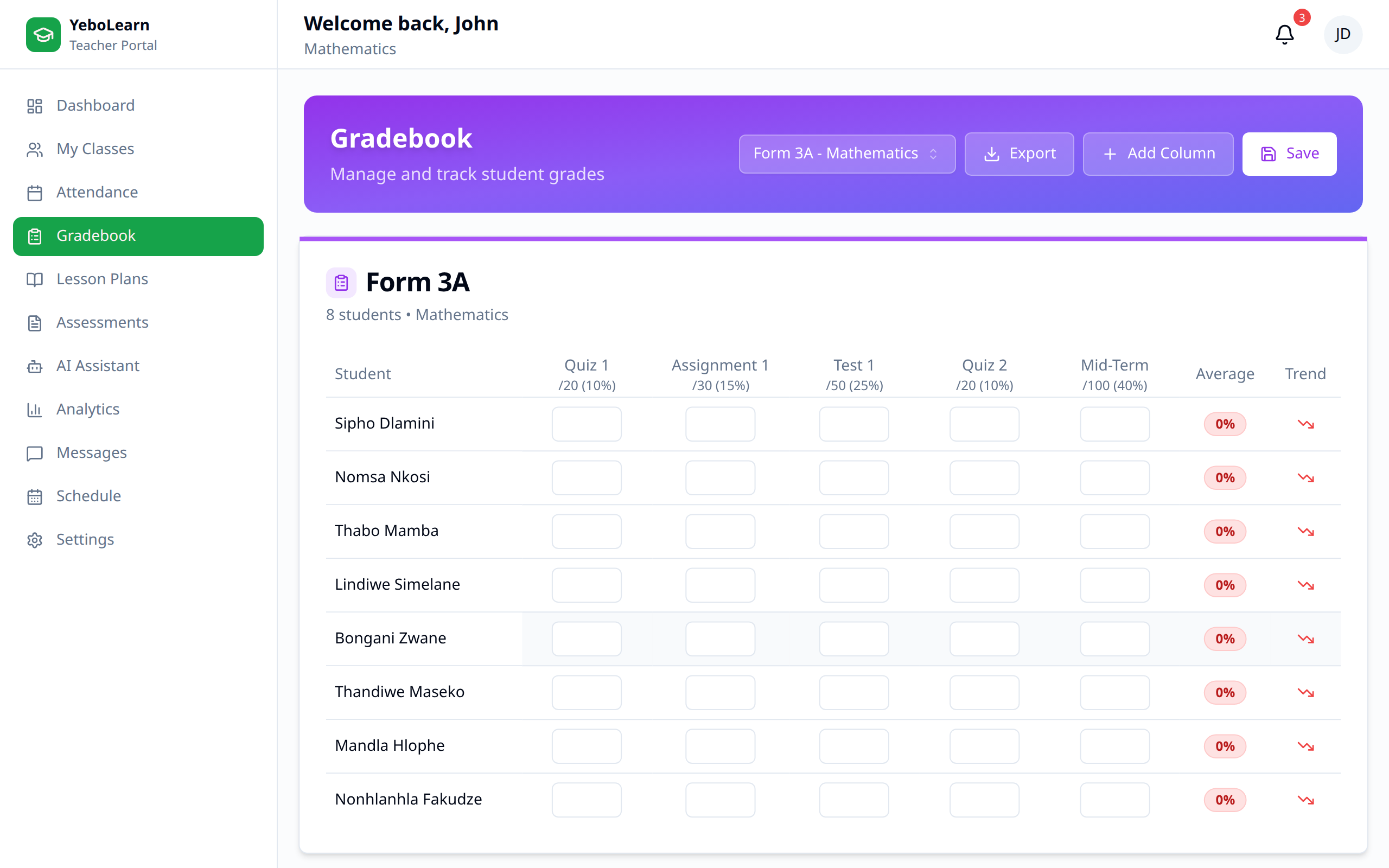
Gradebook Overview
Spreadsheet View
The gradebook displays:
- Student names in rows
- Assessments in columns
- Grades in cells
- Totals and averages
Column Information
Each assessment column shows:
- Assessment name
- Total points possible
- Type (quiz, test, etc.)
- Due date
- Category/weight
Entering Grades
Individual Entry
- Click on a cell
- Enter the score
- Press Enter or Tab to move to next
Bulk Entry
For entering multiple grades:
- Click "Quick Grade" or select the assessment
- Enter all grades in list view
- Click "Save All"
Grade Formats
Enter grades as:
- Points - e.g., 85 out of 100
- Percentage - e.g., 85%
- Letter grade - e.g., A, B+, C
The system converts based on your grading scale.
Grade Categories
Setting Up Categories
Organize grades by category:
| Category | Weight | Example |
|---|---|---|
| Tests | 40% | Unit tests, exams |
| Quizzes | 20% | Weekly quizzes |
| Assignments | 25% | Homework, projects |
| Participation | 15% | Class engagement |
Weighted Grades
Weights determine final grade calculation:
- Each category contributes to the total
- Higher weights mean more impact
- Total weights should equal 100%
Viewing Student Grades
Student Summary
Click on a student name to see:
- All grades for that student
- Running average
- Grade trend
- Missing assignments
Grade Details
For each grade, view:
- Assessment information
- Points earned vs. possible
- Feedback provided
- Submission date
Editing Grades
Changing a Grade
- Click on the grade cell
- Enter new value
- Add reason for change (optional)
- Save
Grade History
View grade change history:
- Original grade
- New grade
- Who changed it
- When it was changed
- Reason provided
:::note All grade changes are logged for transparency and auditing. :::
Special Grade Entries
Missing Assignments
Mark assignments as:
- Missing - Not submitted, affects grade
- Excused - Not counted in average
- Incomplete - Awaiting submission
Late Submissions
Handle late work:
- Enter grade normally
- Apply late penalty if policy requires
- Note late submission
Extra Credit
Add extra credit:
- Enter points above maximum
- Or create separate extra credit category
Calculating Final Grades
Automatic Calculation
The system calculates:
- Category averages
- Weighted total
- Current grade/GPA
- Projected final grade
Grade Calculation Example
Tests (40%): 85% × 0.40 = 34%
Quizzes (20%): 90% × 0.20 = 18%
Assignments (25%): 88% × 0.25 = 22%
Participation (15%): 95% × 0.15 = 14.25%
--------------------------------
Final Grade: 88.25% (B+)
Gradebook Analytics
Class Statistics
View class performance:
- Class average
- Grade distribution
- Highest/lowest grades
- Assessment averages
Trend Analysis
Track performance over time:
- Grade trends chart
- Improving/declining students
- Assessment difficulty patterns
Exporting Grades
Download Options
- Click "Export"
- Select format (Excel, CSV, PDF)
- Choose date range
- Download
Report Cards
Generate formal reports:
- Select students (all or individual)
- Choose report format
- Include comments
- Generate PDF
Publishing Grades
Making Grades Visible
Control when students see grades:
- Enter grades
- Click "Publish" when ready
- Students receive notification
Draft Mode
Keep grades in draft until reviewed:
- Students don't see draft grades
- Publish when finalized
Best Practices
- Grade promptly - Return assessments quickly
- Be consistent - Apply grading criteria uniformly
- Provide feedback - Help students improve
- Double-check - Verify entries before publishing
- Regular updates - Keep gradebook current
- Communicate - Discuss concerns with students/parents
TIP
Use the "Mark All" feature to quickly identify missing assignments that need attention.